4K live streaming bandwidth is not something creators should guess five minutes before going live. A 4K stream needs more upload power, stronger encoder settings, cleaner network stability, and a platform that actually supports 4K input. If one part is weak, the stream may buffer, drop frames, lose quality, or fail to appear as 4K for viewers.
The frustrating part is that a speed test can look good and the stream can still break. A creator may have enough download speed for watching 4K movies, but livestreaming depends mainly on upload speed. A viewer may have a 4K screen, but their connection may not be strong enough to receive the stream clearly. A platform may support 4K, but only through external encoder workflows.
For Online Livestream Sound of Text, this article belongs in the Bandwidth category because the main problem is network capacity. Camera quality matters, but 4K does not survive on camera quality alone.
4K Streaming Needs A Bigger Safety Margin Than 1080p
Before fixing anything, creators need to understand why 4K is less forgiving. A 1080p stream can sometimes survive small internet dips. A 4K stream has less patience. It carries more visual detail, pushes more data, and exposes weak upload stability faster.
Start With Upload Speed, Not Download Speed
A common beginner mistake is testing download speed and assuming the stream is ready. Download speed tells you how fast your connection receives data. Upload speed tells you how well you can send your live video to the platform.
For 4K streaming, upload speed is the number that matters most for the creator.
Check these before going live:
- Run a speed test on the same network you will use for the stream.
- Test upload speed, not only download speed.
- Test more than once, especially during the time you normally go live.
- Compare morning, afternoon, and evening results if the connection changes a lot.
- Do not use the maximum speed as your planning number.
- Plan around the stable speed you get repeatedly.
YouTube recommends running a speed test to test upload bitrate before streaming and says creators should test audio and movement before the live event starts. It also lists recommended 4K encoder bitrate settings, including 35 Mbps for 4K 2160p at 60fps using H.264 and 30 Mbps for 4K 2160p at 30fps using H.264.
Add A Safety Buffer Above The Platform Bitrate
A creator should not set the bitrate equal to the full upload speed. That leaves no room for network fluctuation, audio, background apps, stream overhead, or temporary upload dips.
Use this practical rule:
- If the platform needs around 30 Mbps, do not stream on a connection that only gives 30 Mbps upload.
- If the stream target is 4K at 60fps, give yourself a larger margin than 4K at 30fps.
- If the upload speed jumps up and down, lower the stream target before going live.
- If other people are using the same network, assume your available upload will drop.
- If the stream is important, use wired ethernet instead of relying on Wi-Fi.
Vimeo recommends 25–40 Mbps minimum upload speed for a stable 4K live stream and says 4K streaming requires a 4K or 2K-capable camera plus an external encoder that supports 2160p or 1440p streaming.
Separate Creator Bandwidth From Viewer Bandwidth
The creator and the viewer have different bandwidth problems. The creator needs upload speed. The viewer needs download speed.
A creator may send a clean 4K stream, but viewers with weak connections may still see buffering or lower-quality playback. Vimeo’s live event viewing requirements list 22 Mbps minimum bandwidth for 4K and up playback, while 1080p playback is listed at 7 Mbps.
This matters because 4K is not only a production choice. It is also an audience choice. If most viewers are on mobile data or weak networks, 4K may not improve the actual viewing experience as much as expected.
Fix The Encoder Settings Before Blaming The Internet

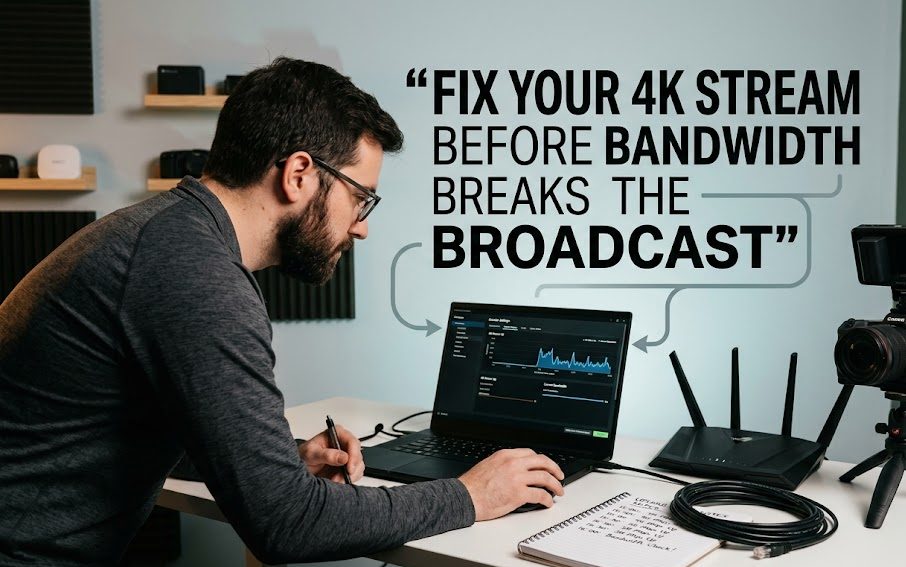
Bandwidth problems are not always caused by the internet provider. Sometimes the encoder settings are too aggressive, inconsistent, or mismatched with the platform.
Match Resolution, Frame Rate, And Bitrate
Do not choose 4K, 60fps, and a random bitrate just because the encoder allows it. Those three settings must match.
For a cleaner setup, check:
- Set resolution to 3840 × 2160 for 4K.
- Choose 30fps if the content is mostly talking, teaching, webinars, product demos, or slow movement.
- Choose 60fps only when the content truly needs smoother motion, such as gaming, sports, performance, or fast camera movement.
- Use platform-recommended bitrate ranges instead of guessing.
- Keep bitrate stable with CBR when the platform recommends it.
- Do a motion test, not only a still camera test.
YouTube says creators using Live Control Room only need to specify resolution, frame rate, and bitrate in the encoder, and YouTube will detect the encoder settings. It also recommends CBR bitrate encoding and a keyframe frequency of 2 seconds, not exceeding 4 seconds.
Use A Lower Target If The Stream Keeps Dropping Frames
If the encoder drops frames, the stream is already warning you. Do not ignore it.
Fix it by lowering one setting at a time:
- Drop from 4K 60fps to 4K 30fps.
- Drop from 4K to 1440p if the connection cannot stay stable.
- Lower the bitrate within the platform’s recommended range.
- Close cloud backup apps, downloads, and browser tabs.
- Stop other devices from uploading on the same network.
- Restart the router before an important stream.
- Switch from Wi-Fi to ethernet.
- Test again after every change.
A clean 1440p or 1080p stream is often better than a broken 4K stream. Viewers usually forgive slightly lower resolution more than constant buffering.
Do Not Change Resolution In The Middle Of A 4K Stream
Some creators think they can start in 4K and drop to 1080p mid-stream if the connection fails. That is not always possible.
Vimeo says creators cannot switch resolutions from 4K to 1080p mid-stream; to change resolution, they must end the current stream, adjust encoder settings, and begin a new stream.
That is why testing matters before the event. A 4K failure during the stream can be more disruptive than choosing a stable lower resolution from the beginning.
Fix The Network Before The Audience Arrives
A 4K stream should not depend on hope. The network should be prepared like part of the production setup. Router position, connection type, competing devices, and upload stability all matter.
Use Ethernet Whenever Possible
Wi-Fi is convenient, but 4K streaming does not reward convenience. A wired ethernet connection is usually more stable because it avoids many wireless problems.
Use ethernet when:
- the livestream is paid or important;
- the stream includes guests, product launches, classes, church events, webinars, or sports coverage;
- the router is far from the streaming computer;
- the Wi-Fi signal changes when people move around;
- other devices compete for wireless bandwidth;
- previous streams had random buffering.
If ethernet is impossible, improve Wi-Fi by doing this:
- Move closer to the router.
- Avoid streaming through walls if possible.
- Use the less crowded Wi-Fi band when available.
- Keep the router away from thick walls, microwaves, and crowded electronics.
- Disconnect unused devices from the network.
- Ask other users not to upload files, video call, or cloud backup during the stream.
Stop Background Uploads Before Going Live
A 4K stream can fail because another app quietly steals upload speed. This is easy to miss because the app may not be visible.
Before streaming, close or pause:
- cloud backup apps;
- file syncing tools;
- large uploads;
- browser tabs with video calls;
- game updates;
- operating system updates;
- automatic photo backup;
- torrent apps;
- screen sharing tools you do not need;
- extra streaming previews.
Then test the stream again.
Check Router And ISP Stability
Sometimes the problem is not the platform or encoder. It is the connection itself.
Look for warning signs:
- upload speed changes wildly between tests;
- live stream health drops at the same time every day;
- video calls also freeze on the same network;
- the router gets hot or restarts;
- other users complain about unstable internet;
- upload speed is much weaker than the plan promised;
- wired connection is stable but Wi-Fi is weak.
If the issue repeats, talk to the internet provider or upgrade the network plan. 4K streaming is not a good format for unstable upload lines.
Fix The Platform Choice Before Forcing 4K
Not every platform should be treated as a 4K destination. Some platforms support 4K workflows clearly. Others focus more on lower-resolution live content, mobile discovery, or standard live formats.
Check Whether The Platform Supports 4K Live Input
Before planning a 4K event, confirm that the platform accepts 4K live input and check whether it requires an external encoder.
Vimeo says 4K live events are supported through RTMP with an external encoder, but not through browser-based studio, SRT, or 24/7 streaming.
That kind of detail matters. If a creator plans a browser-based live session and expects 4K, the platform workflow itself may be the problem.
Understand Latency Tradeoffs
4K can affect latency options. YouTube notes that for 4K or 2160p, the option to improve for low latency is not available and that all such streams are optimized for quality and set to normal latency.
That means 4K may not be the best choice for every interactive stream.
Choose 4K when:
- image detail matters more than speed;
- the event is cinematic or visual;
- the audience expects high production quality;
- the stream is less dependent on instant chat response;
- the camera and lighting are strong enough to justify 4K.
Avoid 4K when:
- chat interaction must be very fast;
- the internet connection is unstable;
- most viewers are on mobile data;
- the content is mostly talking-head;
- the platform workflow does not support it cleanly;
- the team cannot monitor stream health properly.
Keep A Lower-Resolution Backup Plan
A good 4K plan should include a fallback.
Prepare:
- a 1440p encoder preset;
- a 1080p encoder preset;
- a backup thumbnail or holding screen;
- a message for viewers if the stream must restart;
- a backup internet connection if possible;
- a replay plan if the live version fails;
- a short test link before the main event.
This is not overthinking. It is production hygiene.
Fix Viewer Buffering With Smarter Delivery Expectations
Sometimes the creator’s stream is healthy, but viewers still complain. That does not automatically mean the creator did something wrong. Viewers may have weak download speed, old devices, crowded Wi-Fi, or unsupported playback environments.
Tell Viewers What To Check
For important 4K streams, give viewers simple instructions before the event.
Useful viewer tips include:
- Use a stable Wi-Fi connection.
- Avoid mobile data if the signal is weak.
- Close other video apps.
- Refresh the player if the stream stalls.
- Lower playback quality if the connection cannot handle 4K.
- Use a supported browser or official app.
- Restart the device if playback keeps freezing.
- Check whether the stream works better on another device.
Vimeo lists minimum live playback bandwidth requirements by quality level, including 22 Mbps for 4K and up, 12 Mbps for 2K, and 7 Mbps for 1080p.
Do Not Promise 4K To Every Viewer
Even if the stream is sent in 4K, not every viewer will watch in 4K. Platforms may transcode the stream into multiple quality options, and viewers may receive a lower version depending on device and connection.
YouTube says it automatically transcodes live streams to create many output formats so viewers across different devices and networks can watch.
That is good for accessibility, but it also means the creator should phrase the promise carefully. Say the stream is available in 4K where supported, not that every viewer will definitely see 4K.
Q&A
How Much Upload Speed Do I Need For 4K Live Streaming?
For YouTube, H.264 bitrate recommendations include 30 Mbps for 4K 2160p at 30fps and 35 Mbps for 4K 2160p at 60fps. Vimeo recommends 25–40 Mbps minimum upload speed for a stable 4K live stream. A safer setup should leave extra upload headroom above the chosen bitrate.
Why Does My 4K Stream Buffer Even With Fast Internet?
The connection may have unstable upload speed, weak Wi-Fi, background uploads, encoder settings that are too high, or a platform workflow that does not support the chosen 4K setup. Test upload stability, use ethernet, lower frame rate if needed, and check platform requirements before blaming only the speed test number.
Is 4K Better Than 1080p For Every Live Stream?
No. 4K is better when visual detail matters and the network can handle it. For interactive streams, mobile audiences, weak upload speed, or chat-heavy sessions, a stable 1080p or 1440p stream may create a better experience than an unstable 4K stream.
Can Viewers Watch 4K Live Streams With Slow Internet?
Usually not smoothly. Vimeo lists 22 Mbps as the minimum bandwidth for 4K and up live playback, while lower resolutions need less bandwidth. Viewers with slower connections may need to watch at 1080p, 720p, or another lower quality option.


Rei Nakamori has worked in digital accessibility and online safety education, supporting older viewers, families, and people using assistive technologies. She has reviewed video platforms for caption quality, device compatibility, account security, and ease of access. Her writing explains how to watch livestreams safely, recognize suspicious links, protect personal information, and choose accessible viewing options.