Choosing browsers to stream on Discord sounds like a small decision until the stream starts acting weird. The screen shows up, but the audio is missing. The mic works, but the browser feels laggy. The call opens, but the browser asks for permissions again. Someone says, “Just use another browser,” but not every browser behaves the same inside Discord.
Discord’s browser support includes Google Chrome, Mozilla Firefox, Opera, Microsoft Edge, and Safari, with minimum browser versions listed in its system requirements. Discord also warns that older browsers may lack functionality with newer features, and it says running Discord in a mobile browser is not supported.
For Online Livestream Sound of Text, this article belongs in the Browsers category because the issue is not only internet speed. The browser itself can decide whether Discord screen share feels smooth, silent, limited, or simply not worth the trouble.
5 Browsers To Stream On Discord Without Guessing Blindly

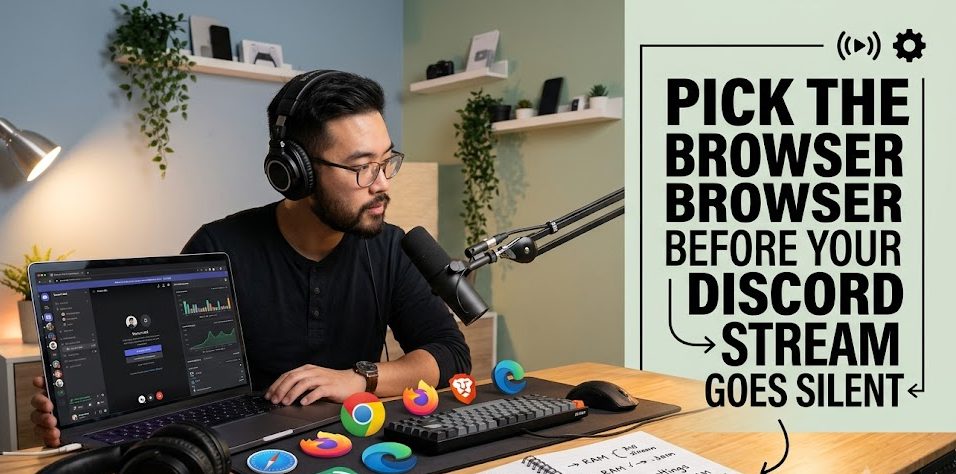
Not every browser is equally strong for every Discord streaming need. Some are better for audio sharing, some are fine for voice and video calls, and some should be treated as fallback options when the main browser does not behave well.
1. Google Chrome For The Safest Browser Audio Sharing Route
Chrome is the first browser to consider when the goal is streaming through Discord web with fewer audio surprises. Discord’s own Go Live and Screen Share guide says audio can currently be captured by the Windows desktop, macOS desktop, Chrome browser, and mobile clients. It also says application audio cannot be shared on other browsers or Linux.
That makes Chrome the strongest browser choice when the stream needs browser audio. For example, if someone wants to share a browser tab, a web app, a tutorial page, a browser-based dashboard, or another web experience where sound matters, Chrome has the clearest official support signal.
The catch is that Chrome still needs permissions. Discord’s Chrome mic guide says that if Discord microphone access was previously disabled, users need to enable it again in Chrome settings, remove Discord from blocked microphone behavior, then join voice and press Allow when prompted.
Chrome is not perfect, but it is the least confusing browser pick when audio sharing is part of the plan.
2. Microsoft Edge For A Stable Chromium-Based Backup
Microsoft Edge is a good second browser to try when Chrome feels heavy, buggy, or overloaded with too many tabs and extensions. Discord lists Microsoft Edge 86+ as a supported browser, which makes it a legitimate browser route for Discord web access.
Edge is useful when the streamer wants a cleaner browser session. Sometimes Chrome has too many extensions, old permissions, cached issues, or background processes. Opening Discord in Edge can separate the stream from the messy everyday browser environment.
Still, Edge should not be treated as equal to Chrome for every streaming use case. Discord’s audio sharing note specifically names Chrome browser for browser audio capture, while saying application audio cannot be shared on other browsers.
So Edge is a sensible fallback for Discord web calls, screen visibility, and browser stability, but Chrome remains the safer pick when shared audio from the browser is critical.
3. Firefox For Viewers And Voice Calls More Than Audio-Heavy Streaming
Firefox is also supported by Discord, with Firefox 142+ listed in the browser requirements. That makes it usable for many Discord web needs, especially for users who already prefer Firefox for privacy, daily browsing, or general web work.
Firefox can be fine for joining Discord in the browser, chatting, watching, speaking, and handling basic voice or video situations. Discord’s voice and video troubleshooting guide even names Chrome, Firefox, and Safari in its browser troubleshooting section for users logging in through Discord.com.
The weak point is audio sharing from the stream source. Since Discord says browser audio capture is currently available through Chrome browser and not other browsers, Firefox is not the first choice for a stream where the audience must hear the shared application or browser audio.
Firefox works better as a clean Discord browser option than as the safest audio-sharing stream browser.
4. Opera For A Lightweight Alternative When The Main Browser Feels Crowded
Opera is another supported Discord browser, with Opera 72+ listed in Discord’s browser system requirements. It can be useful for people who want to keep Discord separate from their main browser without installing the desktop app.
Opera can make sense when the goal is a tidy browser session. A creator might keep research tabs in Chrome, personal accounts in Firefox, and Discord web in Opera to reduce clutter while streaming. That separation can make the stream easier to manage.
But Opera has the same practical warning as Edge and Firefox. It may be supported for browser access, but Discord’s current audio sharing note does not place Opera in the browser audio capture group. Chrome is the named browser option for browser audio capture.
So Opera is a useful alternative browser, but not the browser to trust first when Discord stream audio must work cleanly.
5. Safari For Mac Users Who Need Basic Discord Web Access
Safari is listed by Discord with Safari 15.4+ as the minimum browser requirement. That makes it relevant for Mac users who prefer staying inside Apple’s default browser.
Safari can work for Discord web access, especially for users joining calls, checking messages, watching a stream, or using basic voice and video features. Discord’s browser troubleshooting section also includes Safari permission guidance for microphone and camera access.
But Safari should not be the first pick for audio-sensitive Discord screen sharing from the browser. Discord’s Go Live documentation says application audio cannot be shared on other browsers outside the named supported routes, and Chrome is the browser specifically named for browser audio capture.
Safari is best treated as a supported Mac browser for Discord web, not the strongest streaming browser when audio capture is the main concern.
The Browser Choice Changes When Audio Matters
Screen sharing without sound and screen sharing with sound are not the same problem. A browser can be fine for showing a page but weak when the audience needs to hear audio from that shared source.
Chrome Is The Practical Audio Pick
If the stream needs browser audio, Chrome should be tested first. Discord’s official note is direct enough: browser audio capture is tied to Chrome, while application audio is not available on other browsers.
That matters for streams involving web videos, music previews, browser-based lessons, design reviews, online tools, web games, or any browser tab where sound is part of the experience.
Other Browsers Are Better As Backup Or Viewer Routes
Edge, Firefox, Opera, and Safari are still useful. They can help when Chrome permissions are broken, the main browser is lagging, or the user only needs voice, video, chat, and screen visibility.
But for a creator asking which browser to stream on Discord with fewer audio problems, the safest ranking is not mysterious. Chrome comes first for browser audio. The others are fallbacks, not equal audio choices.
Browser Streaming Has Quality Limits Inside Discord
A browser may be convenient, but Discord’s browser streaming has limits. Discord says all users can stream up to 720p/30fps, while Nitro and Nitro Classic subscribers can stream up to 4K/60fps. It also notes that when streaming through browser, users cannot adjust the stream’s quality.
That means browser streaming is not always the best choice for creators who need strong control over resolution, frame rate, or stream quality.
Discord Desktop Is Better When Quality Control Matters
If the stream needs quality adjustments, the desktop client is often the better route. Discord says users can change stream quality through the screen button above the status bar, but it specifically warns that browser streaming does not allow quality adjustment.
So the decision should be practical. Use a browser when convenience matters. Use the desktop app when the stream needs stronger control.
Browser Streaming Is Best For Simple Sessions
Browser-based Discord streaming is best for lighter use cases. It works well when someone wants to share a page, explain a simple web tool, join a quick group call, or show a browser-based workflow without building a full production setup.
For serious streams, long sessions, game capture, higher quality, or repeat broadcasting, the desktop app usually gives more room to fix problems.
Permissions Can Break A Good Browser Choice
Sometimes the browser is not the problem. Permissions are.
Microphone And Camera Access Must Be Allowed
Discord’s browser troubleshooting guide tells users to check browser compatibility and make sure Discord has permission to use the microphone and camera in the browser. It also points users to permission guides for Safari, Chrome, and Firefox.
If Discord cannot access the mic or camera, switching browsers may help, but fixing permissions inside the current browser may solve the problem faster.
Old Browser Blocks Can Stay Hidden
A user may have blocked Discord months ago and forgotten. Chrome’s Discord mic guide explains that users may need to remove Discord from the “not allowed to use your microphone” section before joining voice again and pressing Allow.
This is why a browser that “does not work” may only be blocked by an old permission choice.
A Cleaner Way To Pick The Right Browser
The best browser depends on what the Discord stream needs to do. Chrome is the safest first choice for browser-based streaming with audio. Edge is a strong fallback when Chrome feels crowded. Firefox is fine for users who prefer it, especially for voice, video, and normal web access. Opera is useful as a separate lightweight browser session. Safari is reasonable for Mac users who need basic Discord web access.
But the sharp rule is this: if audio sharing matters, test Chrome first. If quality control matters, consider the Discord desktop app instead of the browser. If permissions fail, check microphone, camera, and browser compatibility before blaming Discord.
The right browser does not make Discord streaming perfect, but it can stop the most annoying problem before it starts: a stream that looks fine while everyone in the call says they cannot hear anything.


Rei Nakamori has worked in digital accessibility and online safety education, supporting older viewers, families, and people using assistive technologies. She has reviewed video platforms for caption quality, device compatibility, account security, and ease of access. Her writing explains how to watch livestreams safely, recognize suspicious links, protect personal information, and choose accessible viewing options.