A YouTube latency test sounds like a technical task, but in 2026 it is really a judgment test. Too many creators think lower delay automatically means a better stream. That is not always true. Low latency can make live chat feel faster, but it can also expose buffering, unstable upload, weak encoder settings, and bad network habits more aggressively.
YouTube defines stream latency as the delay between the camera capturing an event and the moment viewers see it. YouTube also says lower latency is best when creators respond to live chat, but viewers may experience more buffering with lower latency. That trade-off is the whole problem creators need to understand before choosing the fastest setting.
For Online Livestream Sound of Text, this article belongs in the Latency category because stream delay is not just a YouTube setting. It is the gap between what the creator does and what the viewer reacts to.
YouTube Latency Is A Viewer Experience Problem First
Creators often test latency like they are testing a machine. They say something, count seconds, watch the phone preview, and panic if the delay feels longer than expected. That test is useful, but it is not enough. The sharper question is whether the delay damages the kind of stream being produced.
A Fast Chat Stream Needs A Different Test Than A Quality Stream
A gaming creator, auction host, live teacher, coach, or Q&A host needs tighter interaction because viewer response matters in the moment. A concert replay, church service, conference, documentary-style stream, or announcement event may not need the lowest delay if quality and stability matter more.
A real latency test should separate these two needs:
- Is the creator waiting for viewer answers?
- Is chat timing central to the show?
- Will a 10-second delay break the format?
- Is the audience mostly watching, not participating?
- Is image quality more important than instant response?
- Will buffering look worse than delay?
YouTube’s own latency guide is blunt about this: normal latency is best for non-interactive streams and gives viewers the lowest amount of buffering, while low latency is built for limited interaction and most viewers will experience less than 10 seconds of latency.
The Lowest Delay Can Be The Wrong Flex
Creators love saying their stream is “almost real time.” Fine, but viewers do not care about the brag if the video keeps freezing. Ultra-low latency is tempting because YouTube says most viewers will experience less than 5 seconds of delay, but YouTube also warns that this setting can increase buffering and that live ingestion issues affect viewers more strongly there.
That is why a latency test should not end with “how many seconds behind is it?” It should end with “does this delay make the stream better or just more fragile?”
A Proper YouTube Latency Test Starts Before Going Public
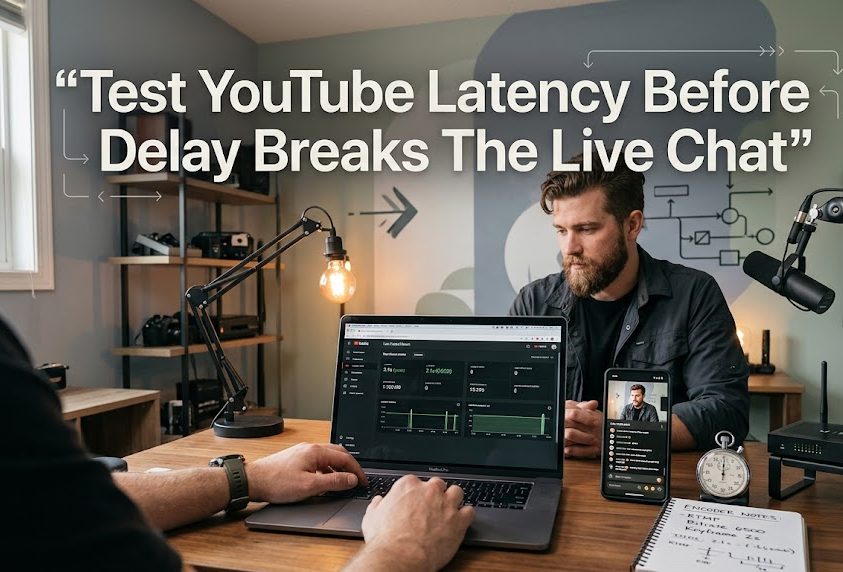
The lazy test is going live publicly, asking chat if the delay is bad, and trying to fix everything while viewers wait. That is not a test. That is using the audience as your troubleshooting team.
Test With A Private Or Unlisted Stream First
The cleaner method is to run a private or unlisted test before the real event. Use the same encoder, camera, microphone, bitrate, resolution, network, and stream format you plan to use publicly.
A practical test flow looks like this:
- Create the test stream in YouTube Live Control Room.
- Use the same latency setting planned for the real stream.
- Start the encoder and wait for the preview.
- Open the stream on a second device as a viewer.
- Clap once, speak a clear phrase, or show a stopwatch.
- Count the delay between action and viewer playback.
- Watch for buffering, not only delay.
- Check chat timing if interaction matters.
- Repeat the test after changing one setting.
YouTube’s encoder help says creators can open Live Control Room from YouTube Studio, set up the encoder, wait for the stream preview, then click Go live. It also notes that streams under 12 hours are automatically archived, which makes reviewing test behavior easier after the session.
Use Real Movement And Real Audio During The Test
A latency test with a still camera is weak. A stream can look stable when nothing moves, then struggle when the host starts demonstrating products, gaming, screen sharing, or moving quickly.
YouTube recommends testing before the live stream and says tests should include audio and movement similar to what will happen during the actual stream. It also says creators should monitor stream health and review messages during the event.
A better test includes:
- normal speaking volume;
- fast hand movement;
- screen sharing if used;
- gameplay if used;
- switching scenes if used;
- playing intro graphics if used;
- reading chat if used;
- showing the actual camera framing;
- testing the microphone and audio sync.
A latency test that ignores the real stream format is just theater.
The 2026 Mistake Is Treating Latency As One Number
Latency is not only “five seconds” or “ten seconds.” It is the visible result of several layers working together: camera, encoder, upload connection, YouTube ingestion, player buffering, viewer device, and viewer network.
The Creator Delay And Viewer Delay Are Not Always The Same
A creator may test on one phone and see one delay. Another viewer may see a different delay because of device, network, buffer health, app behavior, or location. That does not mean YouTube is broken. It means live delivery is not one identical experience for every viewer.
YouTube says lower latency gives the player less read-ahead buffer, and that buffer is the main source of stream latency. It also says network congestion and other factors can delay a stream even when the creator has a network that can sustain the average streaming bitrate.
That line should scare creators out of lazy assumptions. A good upload speed does not guarantee a clean low-latency stream.
Buffer Health Tells The Truth Behind The Delay
A viewer-side delay can feel annoying, but buffer health is often what protects playback. YouTube says extra live stream data in the viewer player helps handle changes in internet speed, and this is called Buffer Health in Stats for Nerds.
This is why normal latency can feel less exciting but more stable. More buffer gives the player room to survive network changes. Ultra-low latency has less room to hide problems.
The sharp review is this: low latency makes your stream more honest. If your network or encoder is weak, low latency will expose it faster.
Encoder Settings Can Ruin A Latency Test
A creator can choose the right latency setting and still fail because the encoder is sending a messy stream. Bad bitrate, wrong keyframe interval, unsupported settings, unstable resolution, or weak upload can make latency testing meaningless.
Bitrate Should Match The Stream Instead Of The Ego
YouTube recommends choosing stream quality based on the creator’s internet connection and running a speed test to test upload bitrate. It also gives recommended bitrate ranges by resolution and frame rate, including 12 Mbps for 1080p at 60fps using H.264 and 30 Mbps for 4K at 30fps using H.264.
That matters because creators often test latency while pushing a bitrate their network cannot hold. Then they blame YouTube for delay, buffering, or unstable delivery.
A cleaner 1080p stream with stable delay is better than a 4K stream that keeps punishing viewers.
Keyframe Settings Are Not A Decorative Detail
YouTube recommends a keyframe frequency of 2 seconds and says it should not exceed 4 seconds. Its live streaming error guide also warns that keyframes not being sent often enough can cause buffering and that keyframes should be sent every 2 seconds.
This is not a small technical footnote. If the keyframe interval is wrong, the stream can feel less stable, and the latency test becomes noisy. The creator may think the latency setting is the problem when the encoder settings are actually dirty.
4K Is A Bad Place To Chase Low Latency
Some creators want everything at once: 4K, sharp quality, fast chat, no delay, no buffering. That fantasy needs discipline.
YouTube says the option to improve for low latency is not available for 4K/2160 streams and that those streams are optimized for quality and set to normal latency. YouTube’s latency guide also says low latency and ultra-low latency do not support 4K resolution.
So a 4K creator should stop pretending ultra-low latency is the goal. The goal is image quality and stable delivery. If real-time chat matters more, lower the resolution and choose a latency mode that actually fits the format.
HLS Is Not The Shortcut For Lower Delay
Some creators hear about different protocols and assume switching ingestion method will magically fix latency. That is not how this works.
HLS Has A Different Purpose
YouTube says HLS can be used to stream HDR or codecs not supported by RTMP, and it requires an encoder that supports HLS. That makes HLS useful for some advanced workflows, but not automatically better for low delay.
YouTube also says the ultra-low latency option is turned off when HLS is chosen because HLS has higher latency since it sends video segments instead of a continuous stream like RTMP.
That should settle the debate for most creators. If the main goal is a tight chat response, HLS is not the magic button.
Protocol Choice Should Follow The Stream Goal
A sharp 2026 workflow does not choose protocol because it sounds advanced. It chooses protocol because it matches the event.
Use a lower-latency RTMP-style workflow when interaction is central and the setup supports it. Consider HLS when the stream needs supported HDR or codec workflows and the creator accepts higher delay. Do not mix goals and then blame the platform.
A latency test should confirm whether the protocol supports the actual format, not whether the creator can name more technical terms than the audience.
The Real Test Is Chat Timing
Latency becomes visible when the creator asks the audience to do something. That is where delay either feels acceptable or starts damaging the room.
Interactive Streams Need Response Testing
A real YouTube latency test should include at least one interaction moment.
Test this:
- Ask viewers to type a word when they hear a cue.
- Show a countdown and see when chat reacts.
- Ask a simple yes or no question.
- Run a poll if the stream format uses polls.
- Ask viewers to confirm audio after a scene switch.
- Check how long it takes before chat responses arrive.
If the delay makes the host wait awkwardly, the latency is too high for that format. If lowering delay causes buffering, the format may need fewer real-time interactions or more stable encoder and network settings.
Non-Interactive Streams Should Stop Worshipping Speed
A keynote, worship service, concert-style event, lecture, announcement, or recorded-style broadcast may not need the fastest latency setting. Normal latency may be the better choice because it supports all resolutions and live features and is the highest-quality setting for viewers with the lowest amount of buffering.
This is where many creators over-optimize. They choose ultra-low latency because it sounds professional, then deliver a worse viewer experience.
The professional choice is not the fastest setting. The professional choice is the setting that matches the stream.
A Better YouTube Latency Test Checklist For 2026
The strongest test is boring in the best way. It checks the real setup, not a fantasy version of the stream.
Test The Stream Like A Viewer, Not Like A Technician
Before the event, test:
- the planned latency setting;
- the exact encoder preset;
- the actual resolution and frame rate;
- the real microphone and camera;
- scene switching if used;
- screen sharing if used;
- upload stability during the same time of day;
- second-device playback;
- chat response delay;
- buffering under movement;
- stream health warnings in Live Control Room;
- replay quality after the test.
YouTube says creators should monitor stream health during the event and review messages, which makes Live Control Room more than a start button. It is where the stream tells the creator whether the setup is behaving.
Change One Thing At A Time
Bad tests change too much at once. A creator lowers bitrate, changes latency mode, switches Wi-Fi, changes resolution, and updates encoder settings in one round. Then nobody knows what actually fixed the issue.
A cleaner test changes one variable:
- First test normal latency.
- Then test low latency with the same bitrate.
- Then test ultra-low latency only if the stream is highly interactive.
- Then lower resolution if buffering appears.
- Then adjust bitrate if upload stability looks weak.
- Then test ethernet if Wi-Fi is unstable.
That is how creators find the real cause instead of guessing.
The Hard Opinion Is Simple
Most YouTube latency problems are not mysterious. They come from creators choosing a latency mode for status instead of purpose.
Ultra-low latency is not automatically better. Normal latency is not automatically outdated. Low latency is not automatically the safe middle. Each setting has a job. YouTube already explains the trade-off: lower latency improves interaction but reduces the player’s buffer, making viewers more likely to feel issues between encoder and player.
The best YouTube latency test in 2026 is not the one that finds the smallest number. It is the one that proves the stream can survive the audience you actually have, the format you actually run, and the network you actually use.
A creator who tests latency properly does not chase speed for vanity. They choose delay with intention. That is the difference between a stream that feels live and a stream that only feels unstable.

Rei Nakamori has worked in digital accessibility and online safety education, supporting older viewers, families, and people using assistive technologies. She has reviewed video platforms for caption quality, device compatibility, account security, and ease of access. Her writing explains how to watch livestreams safely, recognize suspicious links, protect personal information, and choose accessible viewing options.

1 comment
Comments are closed.