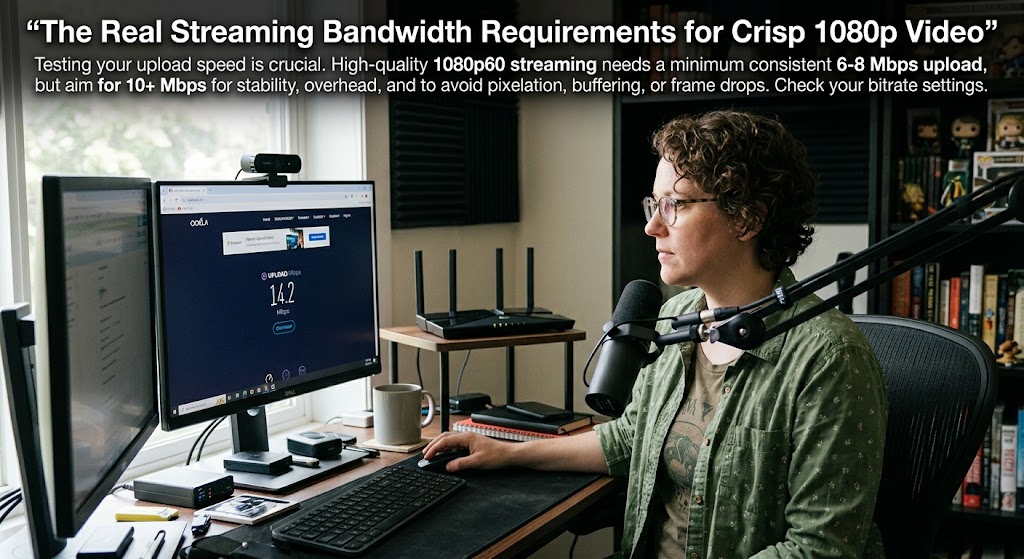
Your stream starts moving, you turn your head, the game gets busy, and suddenly your face becomes a pile of blurry Minecraft-style squares. The first instinct is usually to blame OBS, YouTube, or the camera. But streaming bandwidth requirements often point to a much simpler culprit: your upload connection cannot reliably carry the bitrate you’re asking it to deliver.
And here’s the internet-provider trick worth knowing. A huge download number doesn’t automatically mean you’re ready to stream. Your viewers aren’t sending the video to you. You are uploading it to them.
1. Streaming Bandwidth Requirements Start With Upload Speed And Bitrate
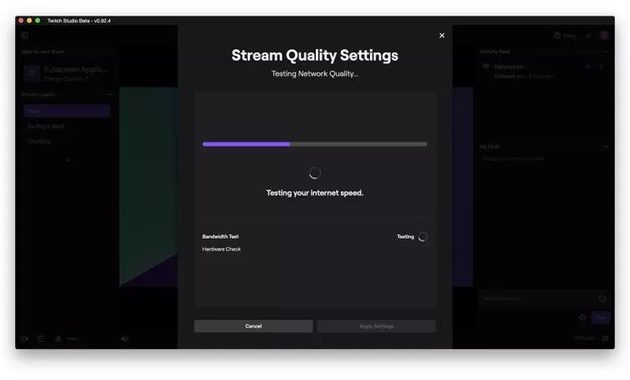
For live streaming, upload bandwidth is the road your video travels on. Bitrate is how much traffic you’re trying to push down that road.
YouTube recommends leaving around 20% headroom above your streaming bitrate rather than running your connection at its absolute limit. It also recommends testing the actual upload connection before going live.
1080p Does Not Automatically Mean One Bitrate
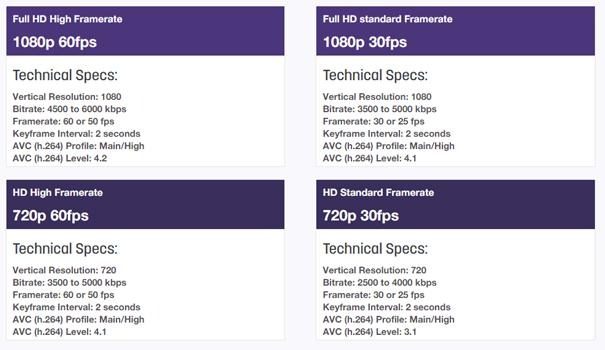
YouTube’s current encoder guidance gives these H.264 reference bitrates:
- 1080p 60fps: around 12 Mbps
- 1080p 30fps: around 10 Mbps
- 720p 60fps: around 6 Mbps
- 720p 30fps: around 4 Mbps
The recommended figures vary by codec, too. YouTube lists lower minimum ranges for AV1 and H.265 compared with its H.264 recommendation.
That’s why simply asking, “How many Mbps do I need?” isn’t enough.
You need to know your resolution + FPS + codec + bitrate.
The Upload Speed Test Is The Reality Check
Suppose your encoder wants 12 Mbps for 1080p60.
A connection that advertises 20 Mbps upload might sound comfortable. But if other people are using the network, Wi-Fi fluctuates, or the actual upload result falls to 14 Mbps, you’re suddenly operating with very little breathing room.
YouTube specifically warns that available bandwidth can be reduced when multiple people share the same connection.
For a serious stream, don’t test once at 3 a.m. and call it done.
Test during the hours you’ll actually stream.
A Simple Bitrate Calculation
You don’t need a complicated bitrate calculator for a first estimate.
Use:
Required upload speed ≈ stream bitrate × 1.2
So:
- 6 Mbps bitrate → about 7.2 Mbps upload
- 8 Mbps bitrate → about 9.6 Mbps
- 10 Mbps bitrate → about 12 Mbps
- 12 Mbps bitrate → about 14.4 Mbps
That’s a practical minimum for one stream, not a guarantee.
If you’re gaming, video calling, uploading files, or running another stream simultaneously, leave more room.
2. 1080p60 vs 720p60 And Why Bitrate Often Beats Resolution
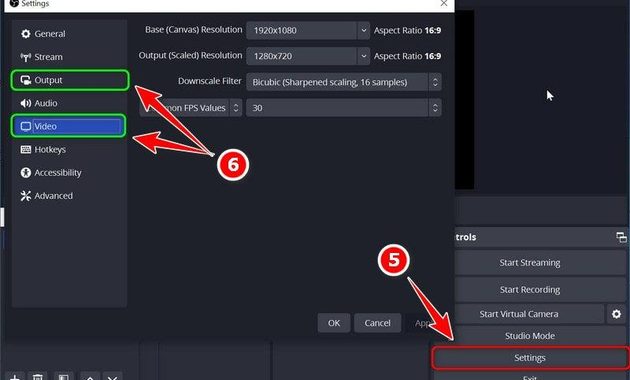
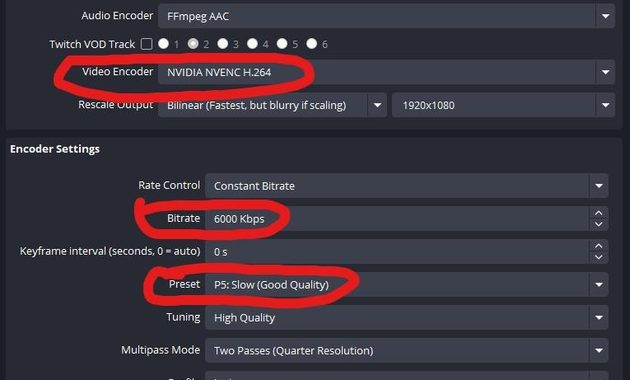
Here’s where streamers often make the wrong trade.
They see “1080p60” and assume dropping resolution means admitting defeat.
It doesn’t.
A stable 720p60 stream can look far better than a struggling 1080p60 stream that constantly loses quality during movement.
Why 60fps Is Expensive
60 frames per second means your encoder has twice as many frames to process compared with 30fps.
Fast games expose the problem immediately.
Trees shake. Characters move. Camera pans happen. Particles explode. Compression suddenly has a mountain of new visual information to deal with.
That’s when poor video encoding quality becomes obvious.
YouTube currently recommends approximately 12 Mbps H.264 for 1080p60 compared with 6 Mbps for 720p60.
If your connection can’t comfortably sustain the former, stepping down can be the smarter move.
When 720p60 Makes More Sense
Choose 720p60 when:
- your upload speed is limited
- your connection fluctuates
- your stream contains lots of fast movement
- your viewers frequently report buffering
- your encoder struggles at higher settings
For gaming, 720p60 can be a surprisingly good compromise.
For talking-head content, 1080p30 may make more sense because the image changes less dramatically.
The Pixelated Stream Fix Isn’t Always “Buy Faster Internet”
If your stream turns into blocks whenever movement begins, check these in order:
- Look at dropped frames and network warnings.
- Run another upload speed test.
- Lower bitrate slightly.
- Switch from 1080p60 to 720p60.
- Consider 1080p30 for slower content.
- Test a wired Ethernet connection.
- Check whether another device is consuming upload bandwidth.
YouTube itself recommends testing with movement and audio similar to the real broadcast rather than performing a completely artificial test.
3. Pixelated Stream Fix And The Upload Headroom You Actually Need
If your stream is already breaking apart, don’t immediately upgrade your internet plan.
Find the bottleneck first.
A useful starting point is YouTube’s 20% bandwidth headroom recommendation.
For example, if your stream bitrate is 10 Mbps, having around 12 Mbps of consistently available upload capacity gives you a buffer.
But that’s still only one stream.
If you’re simulcasting to two platforms, the calculation changes because you’re sending multiple feeds. YouTube’s current guidance for simulstreaming recommends substantially more upload capacity than the combined target bitrate, particularly on shared networks.
Don’t Confuse Download With Upload
This is the mistake behind countless bad streaming setups.
A package saying:
500 Mbps download / 20 Mbps upload
isn’t a “500 Mbps streaming connection.”
Your stream mainly cares about the 20 Mbps upload side.
That huge download number is fantastic for watching Netflix, downloading games, browsing, and pulling files from servers. It doesn’t magically give your outgoing video another 480 Mbps.
Ethernet Still Has A Job
Wi-Fi can absolutely handle streaming, but Ethernet removes one variable from the equation.
Walls, interference, distance from the router, crowded wireless channels and other devices can all affect consistency.
If your stream is unstable despite having enough theoretical upload bandwidth, connect the streaming PC directly to the router and test again.
When To Stop Chasing 1080p
Here’s the practical recommendation:
Use 1080p60 when your upload connection comfortably handles the target bitrate with headroom.
Use 1080p30 when your content doesn’t need ultra-smooth motion.
Use 720p60 when movement matters but your bandwidth is tighter.
Use 720p30 when bandwidth is genuinely limited and stability matters most.
The best stream isn’t the one with the biggest number in the settings menu.
It’s the one viewers can actually watch without buffering, dropped frames, or a face that turns into digital confetti.
If you’re dealing with a more demanding 4K setup, this 4K live streaming bandwidth fix is the logical next step because 4K pushes the bandwidth and encoding requirements considerably higher.

Rei Nakamori has worked in digital accessibility and online safety education, supporting older viewers, families, and people using assistive technologies. She has reviewed video platforms for caption quality, device compatibility, account security, and ease of access. Her writing explains how to watch livestreams safely, recognize suspicious links, protect personal information, and choose accessible viewing options.