The most embarrassing moment in a creator’s life is when the punchline lands, your mouth is frozen wide open, and the chat is staring at a loading icon instead of your reaction. A proper livestream buffering fix starts by asking what actually failed, because a premium internet package does not automatically mean your stream is healthy. OBS and YouTube both separate network instability from encoder and playback problems, and that distinction changes the fix completely.
1. Livestream Buffering Fix Starts With Decoding The Dropped Frames Issue
The first mistake is changing random settings before checking what OBS is actually reporting.
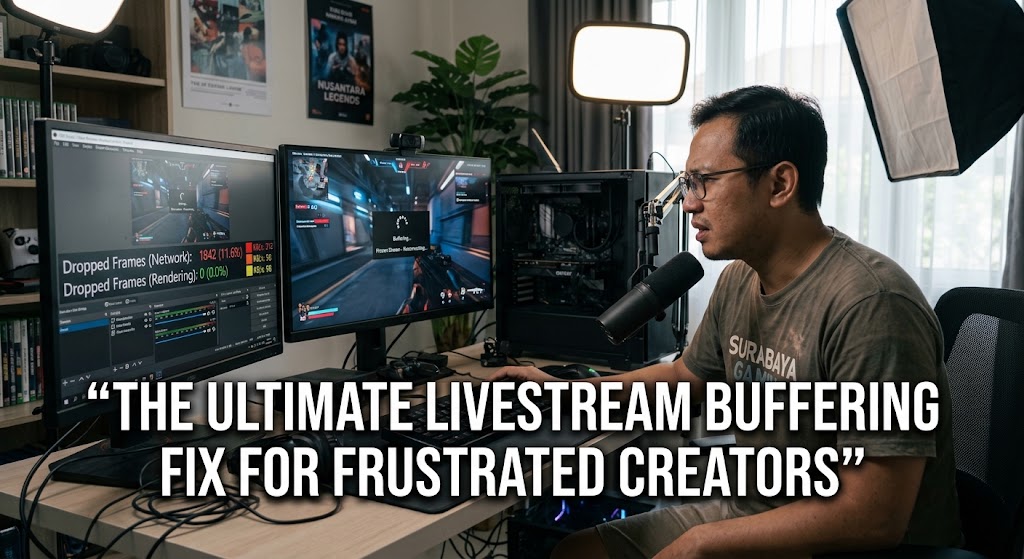
Network Lag Looks Different From PC Lag
OBS gives you useful clues:
- Dropped Frames (Network) usually points toward the connection between your PC and the streaming server.
- Skipped Frames Due To Encoding Lag points toward an encoder struggling to process frames quickly enough.
- Frames Missed Due To Rendering Lag can indicate that your GPU is struggling to render the scene.
OBS explicitly says network-related dropped frames occur when the connection cannot remain stable or cannot keep up with the configured bitrate.
That means a game freezing on your screen and viewers receiving a buffering stream are not automatically the same problem.
The xQc Wi-Fi Camera Incident Is A Perfect Reality Check
A recent example involving streamer xQc showed how bizarre a network problem can become. His stream reportedly kept crashing because a home security camera was overloading the Wi-Fi whenever a car passed by. The lesson is bigger than the incident itself: another device on your network can sabotage a livestream without your PC looking broken at all.
Before blaming OBS, check:
- Upload stability rather than download speed.
- Other devices uploading files or video.
- Wi-Fi interference and router load.
- VPN or network-management software.
- Whether the problem disappears on Ethernet.
If the dropped-frame percentage rises while your game remains perfectly smooth, suspect the network first.
2. Network Throttling And Bitrate Drops Can Turn Good Internet Into A Bad Stream
A speed test showing 300 Mbps download does not prove that your livestream can reliably send a 6 or 8 Mbps stream. YouTube specifically recommends checking outbound upload bandwidth and leaving around 20% headroom above the streaming bitrate.
Why Network Throttling Is Not Always Obvious
Your ISP may advertise enormous download speeds while your actual upload capacity is much smaller. Even without deliberate throttling, congestion, shared household traffic, routing problems, or unstable Wi-Fi can create the same symptom.
A useful test is simple:
- Run a speed test while nobody else is uploading.
- Repeat it during your normal streaming hours.
- Compare Ethernet against Wi-Fi.
- Watch OBS statistics during the broadcast.
- Lower bitrate temporarily and see whether stability improves.
YouTube also recommends testing the exact type of movement and audio you expect during the real broadcast rather than testing an idle desktop.
Bitrate Drops Need A Different Response
If your connection cannot consistently sustain the configured bitrate, reducing bitrate is often more useful than repeatedly restarting the router.
For example, if your upload connection becomes unstable around 8 Mbps, forcing an 8 Mbps stream simply because the speed test once reached 10 Mbps is asking for trouble.
This is why bitrate drops should be treated as a stability problem, not just a quality problem.
If you want a more detailed comparison of practical fixes, this streaming buffering solution vs quick internet fixes explains why changing the connection is not always the first answer.
3. OBS Encoding Lag Needs A PC Diagnosis Before You Touch The Router
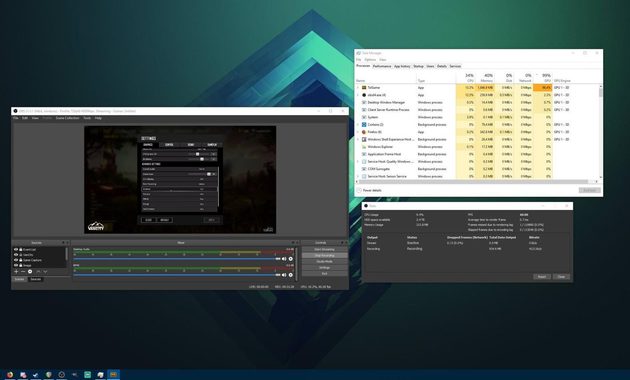
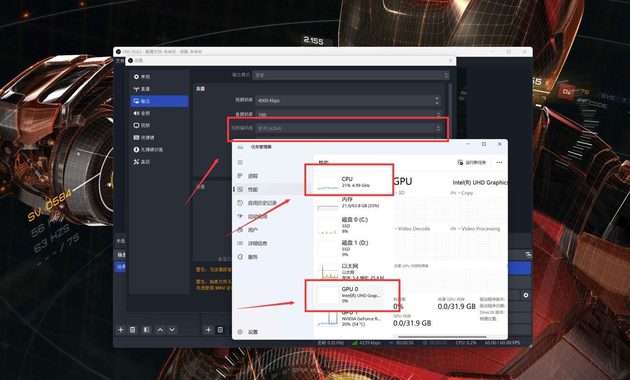
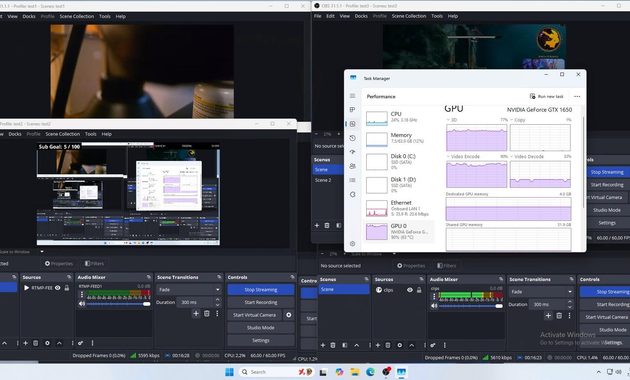
Sometimes your internet is completely innocent.
When The Encoder Is The Bottleneck
An overloaded PC can produce stuttering even with excellent fiber internet. If OBS reports encoding-related problems while your network statistics remain healthy, investigate CPU or GPU load instead.
Common causes include:
- Game settings pushing the GPU to 99%.
- Software encoding overwhelming the CPU.
- Too many animated OBS sources.
- High-resolution webcam processing.
- Browser-based alerts and overlays.
- Recording and streaming simultaneously.
OBS distinguishes encoding problems from network dropped frames because they occur at different stages of the streaming pipeline.
The Fastest OBS Encoding Lag Test
Temporarily reduce the workload.
Lower the game’s graphics settings, close unnecessary applications, simplify your OBS scene, or switch to an appropriate hardware encoder if your GPU supports one.
If the stream immediately becomes smoother without touching your internet connection, you have found the suspect.
Do Not Chase Quality Until Stability Returns
A common streamer trap is trying to preserve maximum resolution and bitrate while the system is already struggling.
OBS itself recommends lowering bitrate and accepting some reduction in resolution or frame rate when necessary to create a more reliable stream.
That principle is especially important for creators with modest PCs. A stable 720p stream looks far more professional than a theoretically beautiful 1080p broadcast that freezes every few seconds.
The best livestream buffering fix is therefore not necessarily the setting that produces the sharpest picture. It is the setting that survives the entire broadcast.
Q&A
Why does my stream buffer when OBS shows almost no dropped frames?
The buffering may be happening after your stream reaches the platform. OBS can show a healthy outbound connection while individual viewers experience playback problems caused by their device, network, or available transcoding. OBS specifically notes that viewers can experience buffering even when the broadcaster is not dropping frames.
Can ultra-low latency make buffering worse?
Yes. YouTube explains that lower latency leaves the player with less read-ahead buffer, which can increase the chance of playback interruptions. Ultra-low latency is useful for highly interactive broadcasts, but stability should come first.
Should I change my ISP if my livestream keeps buffering?
Not immediately. First isolate the problem with Ethernet, another network, lower bitrate, OBS statistics, and a different streaming service if possible. If the problem consistently follows your connection rather than your PC, then contacting the ISP becomes much more reasonable.

Rei Nakamori has worked in digital accessibility and online safety education, supporting older viewers, families, and people using assistive technologies. She has reviewed video platforms for caption quality, device compatibility, account security, and ease of access. Her writing explains how to watch livestreams safely, recognize suspicious links, protect personal information, and choose accessible viewing options.