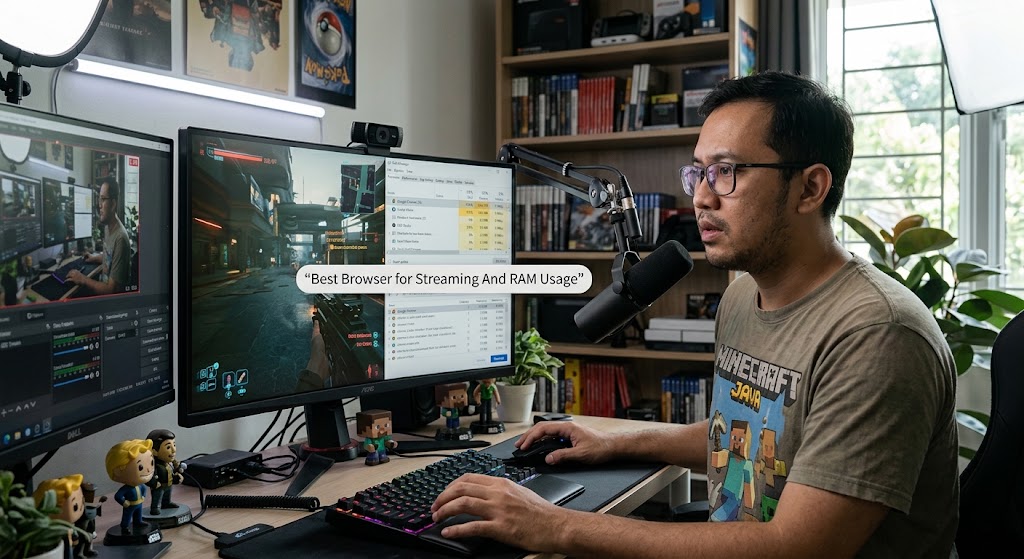
Google Chrome is the browser we all love until it quietly turns into a RAM vampire while you are live. One heavy game, OBS, Discord, Twitch, music, and a few “harmless” tabs later, your FPS starts dropping. Finding the best browser for streaming is therefore less about which browser wins a benchmark and more about which one leaves enough CPU, RAM, and GPU resources for the game and encoder.
The old Chrome RAM reputation is not completely imaginary. The infamous Great Suspender episode in 2021 showed just how dependent many Chrome users had become on tab-suspending tools to control memory. The extension had more than two million downloads before Google removed it after malware concerns.
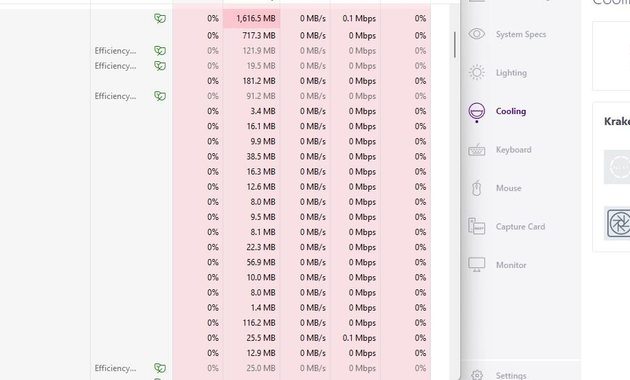
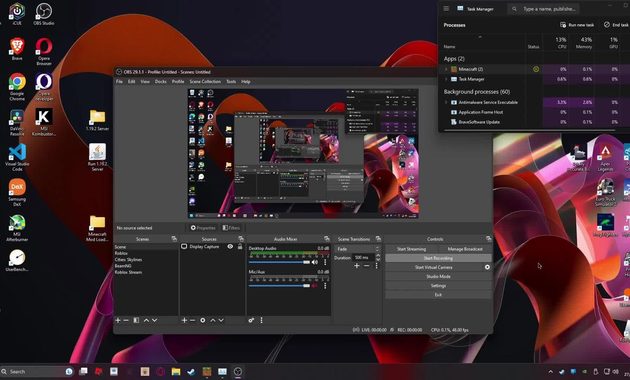
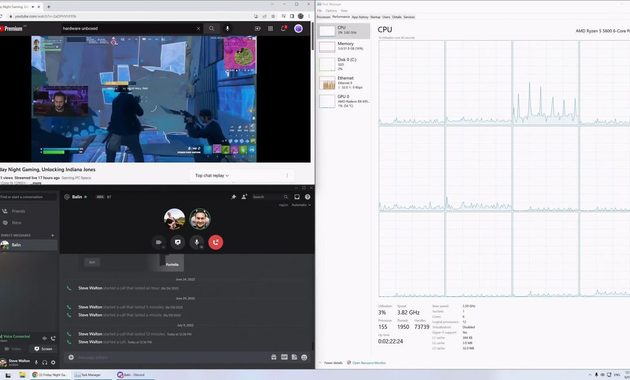
1. Best Browser for Streaming Starts With Finding What Is Actually Eating Your RAM
A browser rarely destroys FPS by existing alone. The problem is what it is doing in the background.
Chrome Is Not Automatically the Villain
Chrome has improved its memory management considerably. Its Memory Saver can deactivate inactive tabs and reload them when needed, with Moderate, Balanced, and Maximum saving levels. Google specifically recommends Memory Saver for active video and gaming tabs.
So before uninstalling Chrome, try this:
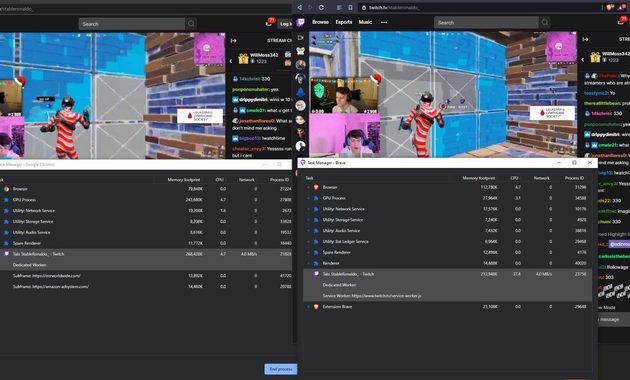
- Press Shift + Esc to inspect Chrome’s browser processes.
- Close video-heavy tabs you do not need.
- Remove extensions you rarely use.
- Enable Memory Saver.
- Avoid keeping several Twitch, YouTube, Discord, and dashboard tabs active simultaneously.
The real lesson is simple: browser performance depends heavily on workload, not just the browser’s name.
When Memory Leak Issues Become A Real Streaming Problem
A genuine memory leak or runaway tab usually looks different from normal RAM usage. Memory keeps climbing, the browser becomes sluggish, switching tabs becomes slow, and eventually the whole system starts struggling.
That is when ram usage optimization becomes more useful than endlessly changing browsers.
For a 16 GB gaming PC, leaving 5–8 GB available for the game, OBS, Windows, and other essential processes is a much safer starting point than letting the browser consume whatever it wants.
2. Hardware Acceleration Fixes Can Help But Do Not Treat It Like A Magic Switch
5
Why Hardware Acceleration Sometimes Causes Trouble
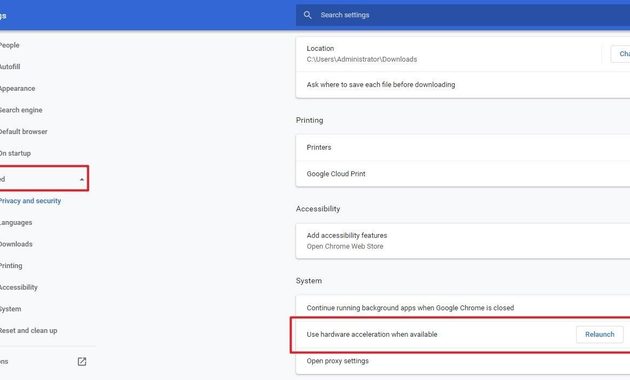
Hardware acceleration moves certain browser rendering and media tasks toward the GPU instead of relying entirely on the CPU. That can be beneficial, especially for video-heavy pages.
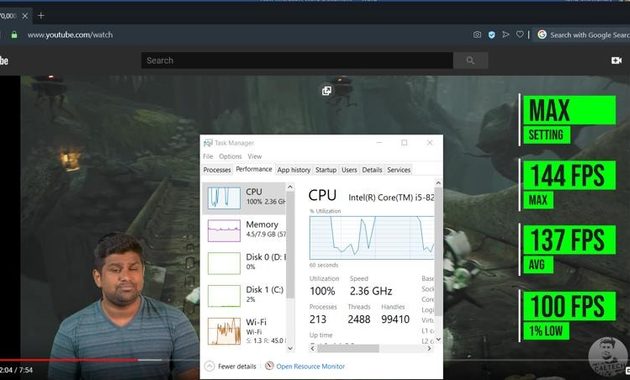
But streaming creates a different situation. Your GPU may already be busy rendering a demanding game, handling OBS composition, browser sources, overlays, and video playback.
If the GPU is close to its limit, a hardware acceleration fix can be worth testing.
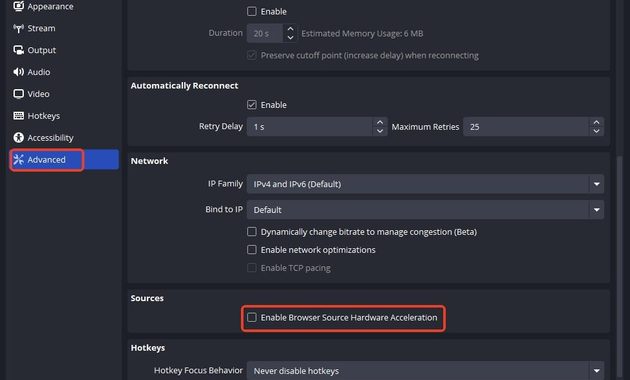
Do not blindly disable it, though. OBS itself uses Chromium Embedded Framework for Browser Sources, and OBS documentation confirms that browser sources can use hardware acceleration. Community troubleshooting also shows that changing this setting can solve specific rendering or performance problems, but other systems may actually perform better with acceleration enabled.
The Better Test Takes Five Minutes
Try the same stream scenario twice:
- Run the game and OBS normally.
- Open the browser tabs you actually use while streaming.
- Check GPU, CPU, RAM and FPS.
- Toggle browser hardware acceleration.
- Restart the browser.
- Repeat the same game scene and stream workload.
If disabling acceleration reduces GPU pressure and stabilizes gameplay, keep it off.
If video becomes choppy or CPU usage jumps, turn it back on.
That is a much better approach than following a random “disable hardware acceleration for better FPS” tip.
Watch OBS Browser Sources Too
This is easy to overlook. OBS Browser Sources can contain animated alerts, chat boxes, widgets, donation tickers, and web-based overlays. OBS describes Browser Source as an embedded web browser capable of rendering web pages, video and audio.
So your normal browser is not necessarily the only browser workload running during a stream.
If OBS has ten animated browser sources while Chrome has another ten active tabs, your PC is effectively running a small web ecosystem beside the game.
For a practical Discord setup, this browser guide for streaming on Discord can also help you decide which browser workload actually needs to stay open.
3. Opera GX vs Edge vs Chrome For Streamers With Limited Hardware
Opera GX Makes The Strongest Case For A Gaming Browser
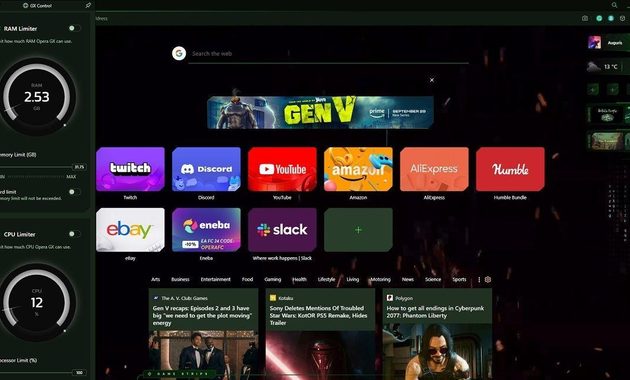
Opera GX is interesting because it gives you direct controls over browser resources rather than simply asking you to trust automatic optimization.
Its GX Control includes:
- RAM limiter
- CPU control
- Bandwidth limiter
- Hot Tabs Killer
Opera officially positions these features specifically around preventing browser activity from consuming resources needed by games.
Independent testing and reviews have also found the RAM limiter useful on systems where the browser competes directly with demanding games. The trade-off is obvious: restricting RAM can make inactive tabs reload, while aggressive CPU limits can make browser video or other tasks less smooth.
For an 8–16 GB PC, that control can be genuinely useful.
Edge Is The Quiet Alternative
Microsoft Edge deserves more attention from streamers because its performance tools are practical rather than flashy.
Sleeping Tabs can release memory and reduce CPU usage from inactive tabs, while Edge’s Performance Detector can identify tabs consuming excessive RAM or processing power.
That makes Edge a particularly sensible choice if you want a mainstream browser without the extra gaming interface of Opera GX.
So Which One Should You Pick?
My practical ranking looks like this:
For a low-end or mid-range gaming PC: Opera GX.
For a clean mainstream setup: Edge.
For maximum compatibility with sites and extensions: Chrome.
For a high-end PC with plenty of RAM: whichever browser feels fastest and causes the fewest conflicts with your setup.
A gaming browser is not automatically faster. Its advantage is giving you more control over what happens when the game, OBS and browser fight for resources.
The Streamer Rule That Matters More Than Browser Choice
Do not leave unnecessary tabs open just because you have 32 GB of RAM.
RAM is not the only bottleneck. A browser can also consume CPU cycles, GPU resources, network bandwidth and background processing time.
If you stream a heavy game such as Cyberpunk 2077, Warzone or another GPU-intensive title, a browser playing 1080p video beside OBS is a completely different workload from a browser displaying one static chat page.
That is why memory leak issues should be diagnosed from actual resource usage rather than assumed from the browser brand.
Q&A
Does disabling hardware acceleration always increase FPS?
No. It can help when the browser and game are competing heavily for GPU resources, but it can also shift more work to the CPU. Test both settings using the same game, OBS scene and browser workload.
Is Opera GX actually faster than Chrome for streaming?
Not universally. Its biggest advantage is resource control. If your PC is RAM-constrained, GX Control can be more valuable than a small benchmark advantage.
How much RAM should a streaming browser use?
There is no universal number. On an 8–16 GB machine, keeping the browser deliberately lightweight is sensible. On a 32 GB or higher system, you have more breathing room, but runaway tabs, video playback and extensions can still create CPU or GPU pressure.

Rei Nakamori has worked in digital accessibility and online safety education, supporting older viewers, families, and people using assistive technologies. She has reviewed video platforms for caption quality, device compatibility, account security, and ease of access. Her writing explains how to watch livestreams safely, recognize suspicious links, protect personal information, and choose accessible viewing options.